
Visual Studio Community is Microsoft’s free, full-featured IDE for individual developers and other users who meet Microsoft’s license terms. The old Community 2013 download and eligibility details in this article are no longer a safe guide to current use. Get the current edition from Microsoft’s Visual Studio downloads page, and check the current Community license before using it for a company or team.
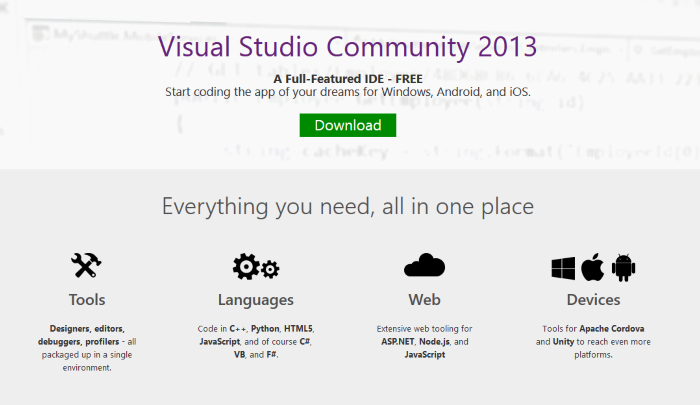
Who can use Visual Studio Community?
Microsoft’s current Visual Studio edition comparison lists individual developers, classroom learning, academic research, and contributions to open-source projects among Community’s use cases. It also lists use by non-enterprise organizations for up to five users. The specific license terms control what is allowed; the comparison page is a summary, not a replacement for the agreement.
An individual developer may use Community to build their own applications, including commercial apps, under Microsoft’s terms. Organizations should confirm that their size, users, and intended use qualify before installing it. In particular, do not rely on the enterprise threshold described in this post’s 2014 coverage: check the current agreement for Microsoft’s definition and restrictions.
If you are choosing an edition for a team, read the Community license terms and Microsoft’s edition comparison. This guide is practical editorial guidance, not legal advice.
Download and choose the tools you need
- Open Microsoft’s Visual Studio downloads page and select the Community edition. Avoid old Community 2013 download links; they do not install the current IDE.
- Run the Visual Studio Installer. On the Workloads tab, choose the language or platform you need, such as .NET desktop, web, or C++ development. Workloads install groups of related tools.
- Use Individual components only when you need tools that are not included in a selected workload, then choose Install or Modify.
- To change the installation later, open Visual Studio Installer and select Modify for that installation. Microsoft’s workload and component guide has current steps.
Installing only the workloads you use avoids downloading unneeded components. Some workloads and their dependencies can still require substantial disk space; review the installer’s selection before starting.
Community, Build Tools, or Visual Studio Code?
- Visual Studio Community is the full IDE when you want integrated project templates, debugging, and the workloads for supported Microsoft development workflows. Its license still applies even though the edition is free.
- Build Tools for Visual Studio is for building supported projects from the command line, such as on a build server; it is not a replacement for the full interactive IDE. Microsoft’s downloads page states that Build Tools requires a valid Visual Studio license, with an exception for building open-source dependencies.
- Visual Studio Code is a separate, cross-platform source-code editor. It can be a better fit if you want a lighter editor and extensions rather than the full Visual Studio IDE. See Visual Studio Code.
Find and install extensions through Visual Studio’s Extension Manager or follow Microsoft’s current extension and Marketplace instructions. The old Visual Studio Gallery address in the original article no longer resolves reliably.
Original Visual Studio Community 2013 announcement
The image and video below are retained from the original post as historical material, not as instructions for installing or licensing today’s edition. The original Visual Studio Blog announcement and Community 2013 release notes are also preserved for historical reference.
